

"Someone May Have Tried to Access Your Account" — Meta Authentication Error Blocking Campaign Publishing
The Problem
When attempting to publish a campaign through Smart Noise, Meta returns the following error:
"We think someone may have tried to access your account without permission. For your protection, you won't be able to create or modify ads until you authenticate your account in Ads Manager. Your existing ads will continue to run normally."
This error blocks campaign creation and publishing through Smart Noise, even though Meta Ads Manager itself may not show any authentication prompt or send any related emails. Existing ads continue to run normally.
Who This Affects
This is most commonly seen with accounts that are relatively new to running ads or are connecting to a third-party platform (like Smart Noise) for the first time. However, it can also affect accounts that have been running ads directly on Meta for months or longer.
Troubleshooting Steps
Work through these in order. After each step, log out of both Meta and Smart Noise, clear your browser cache, log back in, and attempt a new campaign from scratch before moving to the next step.
Quickest Fix — Verify Directly in Ads Manager
Because the error itself points you to Ads Manager, the fastest fix is usually to trigger Meta’s verification prompt there directly:
Open Meta Ads Manager.
Open any campaign and click to edit any ad in it — any random ad from any campaign works; you don’t need to actually change anything.
Look at the top-right corner of the ad editing view. Meta shows a message saying the account needs to be verified before any other changes can be made, with a button to start verification.
Click that button and complete the verification.
Return to Smart Noise and publish again (create a fresh campaign rather than retrying the blocked one).
This directly satisfies the “authenticate your account in Ads Manager” requirement in the error. If you don’t see the verification message in Ads Manager, work through the steps below.
1. Verify Your Identity in Meta Business Suite
Go to business.facebook.com. In the left-hand menu, navigate to Authorization and Verification (location may vary depending on your account type). Complete any pending identity or phone number verifications.
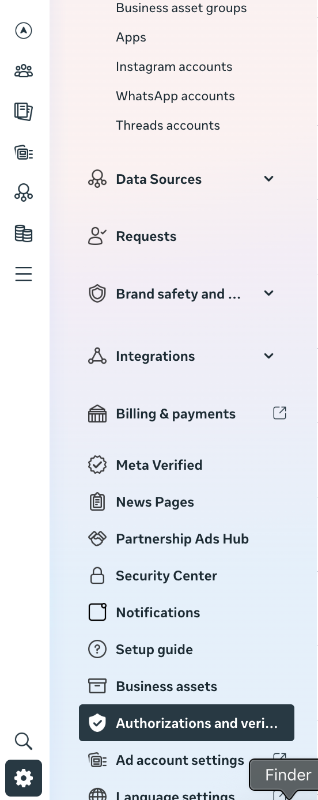
Note: This menu item may not appear in the same location for all accounts. If you don't see it at the expected URL, search your Meta Business settings for verification-related options.
2. Enable Two-Factor Authentication (2FA)
Meta increasingly requires 2FA for accounts connected to third-party ad platforms. If you haven't already, enable 2FA on your Facebook account. If you already have it enabled, proceed to the next step.
3. Disconnect and Reconnect Meta on Smart Noise
After making any changes to your Meta account settings (verification, 2FA, payment), you need to disconnect and reconnect your Meta account within Smart Noise. The platform needs a fresh connection to pick up updated permissions.
4. Check Your Payment Method
Go to your Meta Ads Manager billing settings and confirm your payment method is current and valid. Direct link: Business Settings → Billing → Payment Methods: https://business.facebook.com/billing_hub/payment_methods
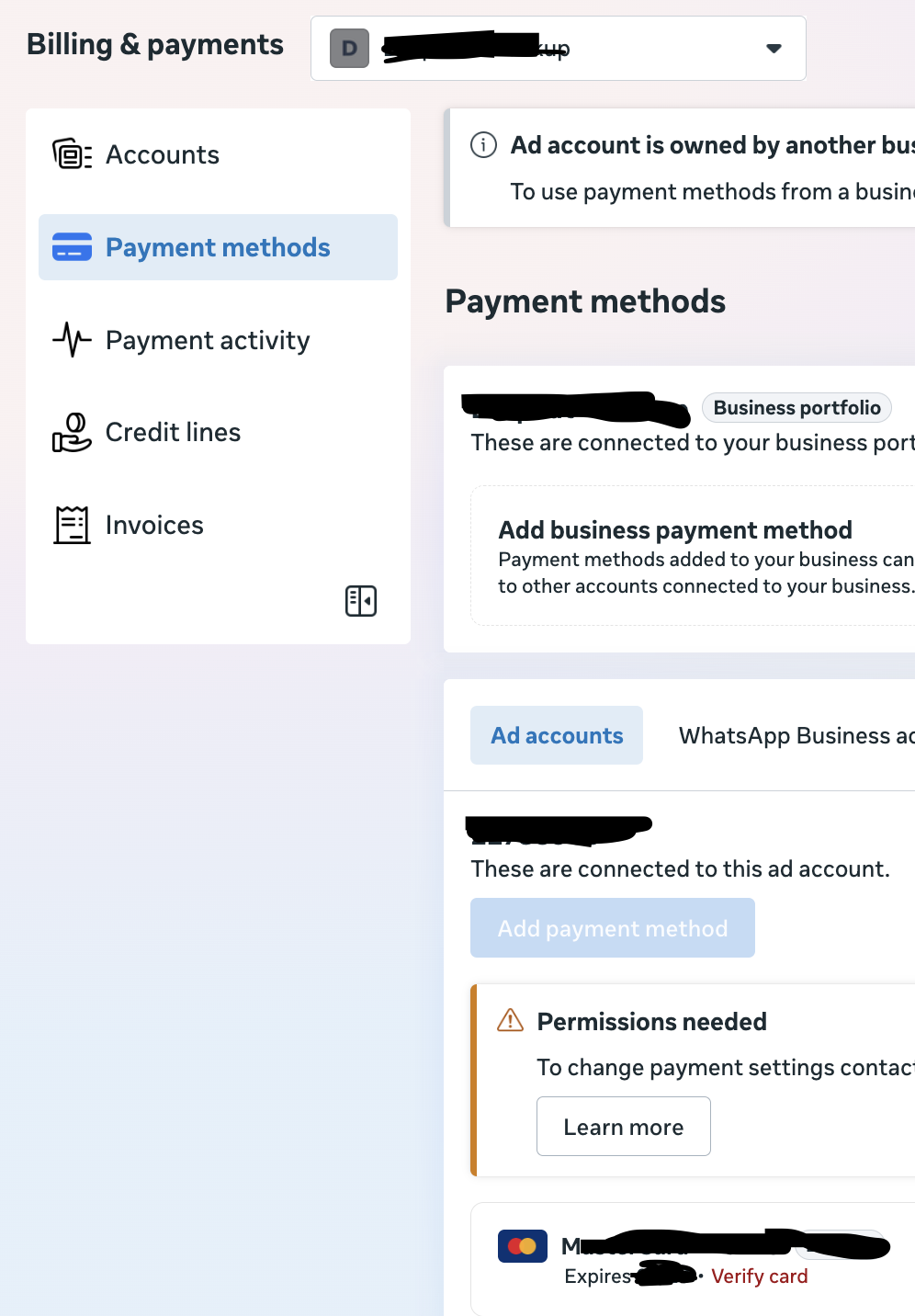
Note: There are two places in Meta where payment methods appear, but only the one tied to your ad account matters for publishing. Make sure the correct ad account has a valid payment method attached.
5. Full Reset — Cache, Sessions, Reconnect
If none of the above resolved it:
Log out of Meta completely
Log out of Smart Noise
Clear all browser cache and cookies
Log back into Meta
Log back into Smart Noise and reconnect your Meta account
Create a brand-new campaign (don't retry an existing one)
The goal is to eliminate any stale session or permission data.
If Nothing Works
If you've exhausted all the steps above and the error persists, contact Smart Noise support.